
🚀Getting started
When you open Kitetown, you choose how to begin. You can always start again later from the ☰ menu with New city…, and your old city is kept in Backups.
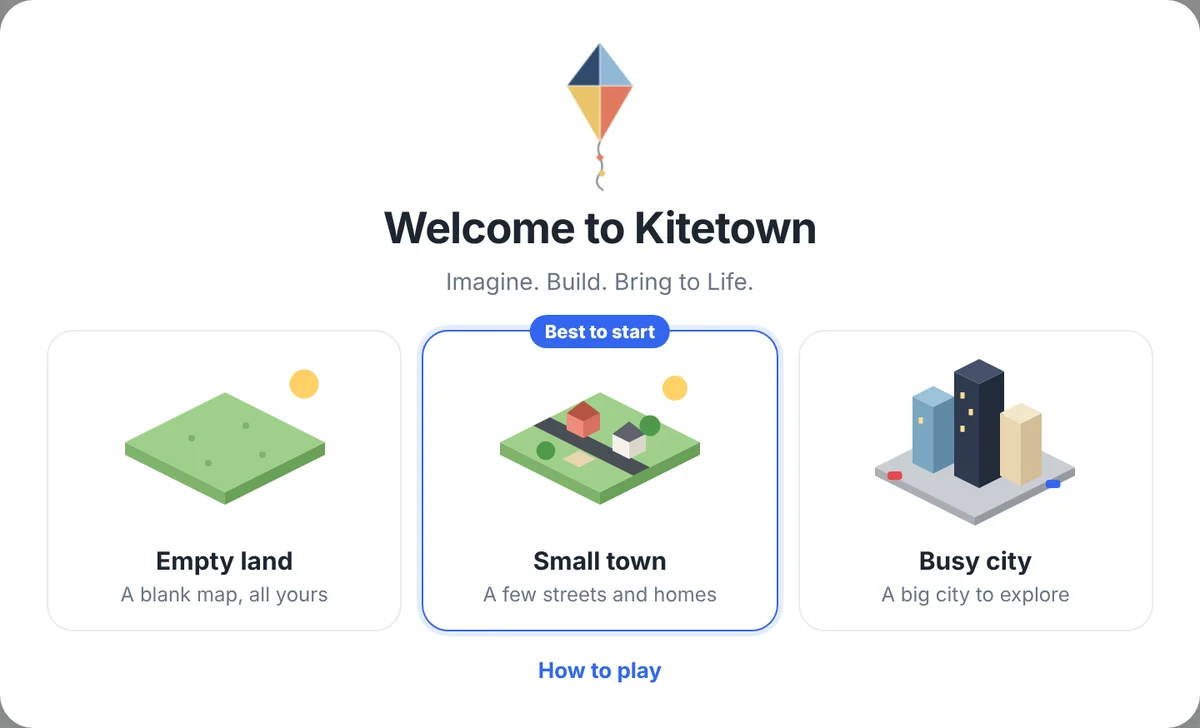
Empty land
A blank map that is all yours. Start with a road.
Small town best to start
A few streets, homes, a park and a bus line, ready to grow.
Busy city Full game
A big, lively city to explore and change.
The "Start here" list
In a new town, a small list shows six first steps: lay a road, place a building, zone some homes, add a bus stop, look at something, and take a photo. Each step ticks itself off when you do it. Tap the list header to fold it away, or × to hide it.
🧭The screen at a glance
Everything is in four places: the tools and panel on the left, the top bar, the view controls at the bottom right, and the city facts at the bottom.
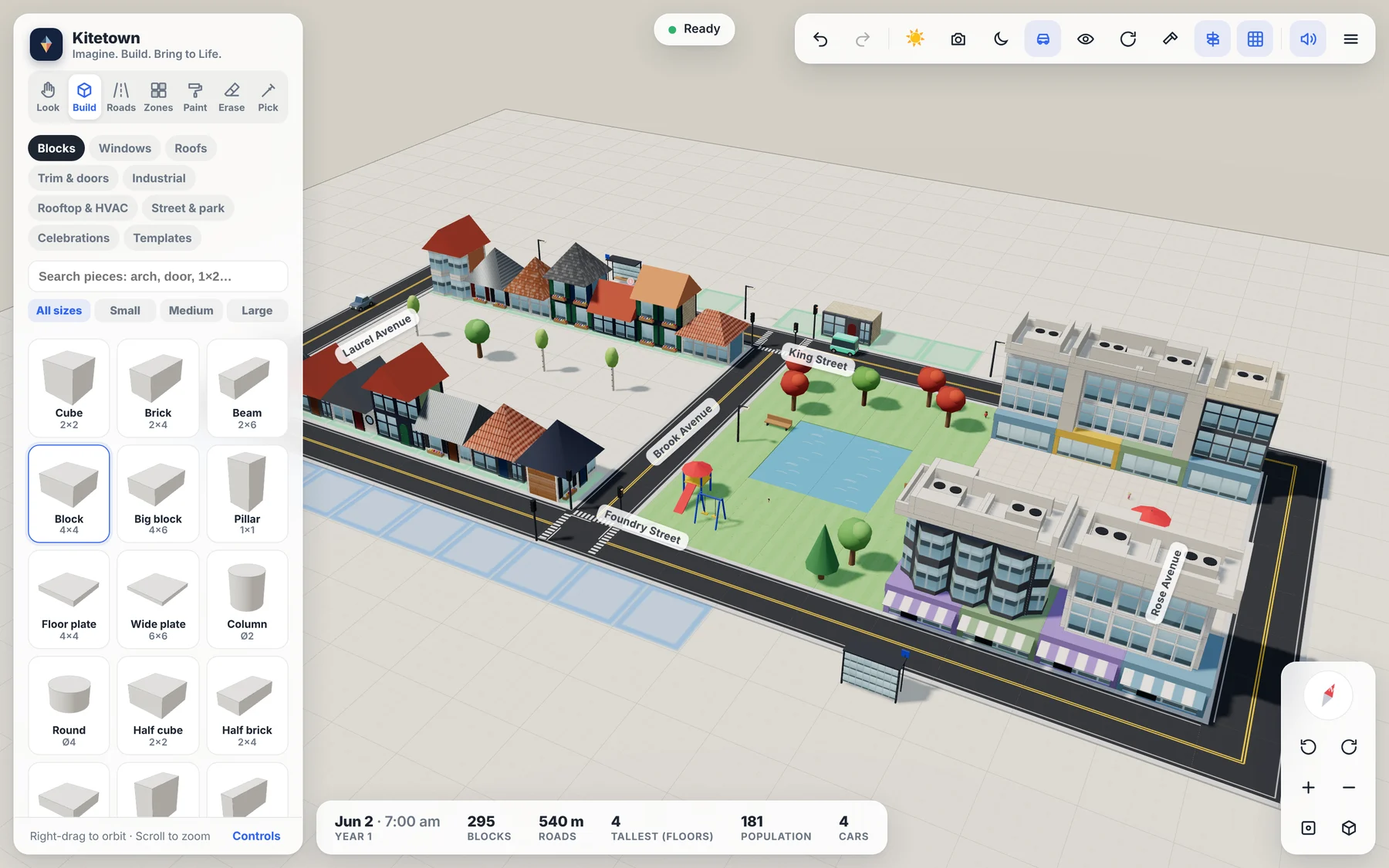 1
2
3
4
5
6
- Tools. Look, Build, Roads, Zones, Paint, Erase and Pick. Keys 0 to 6.
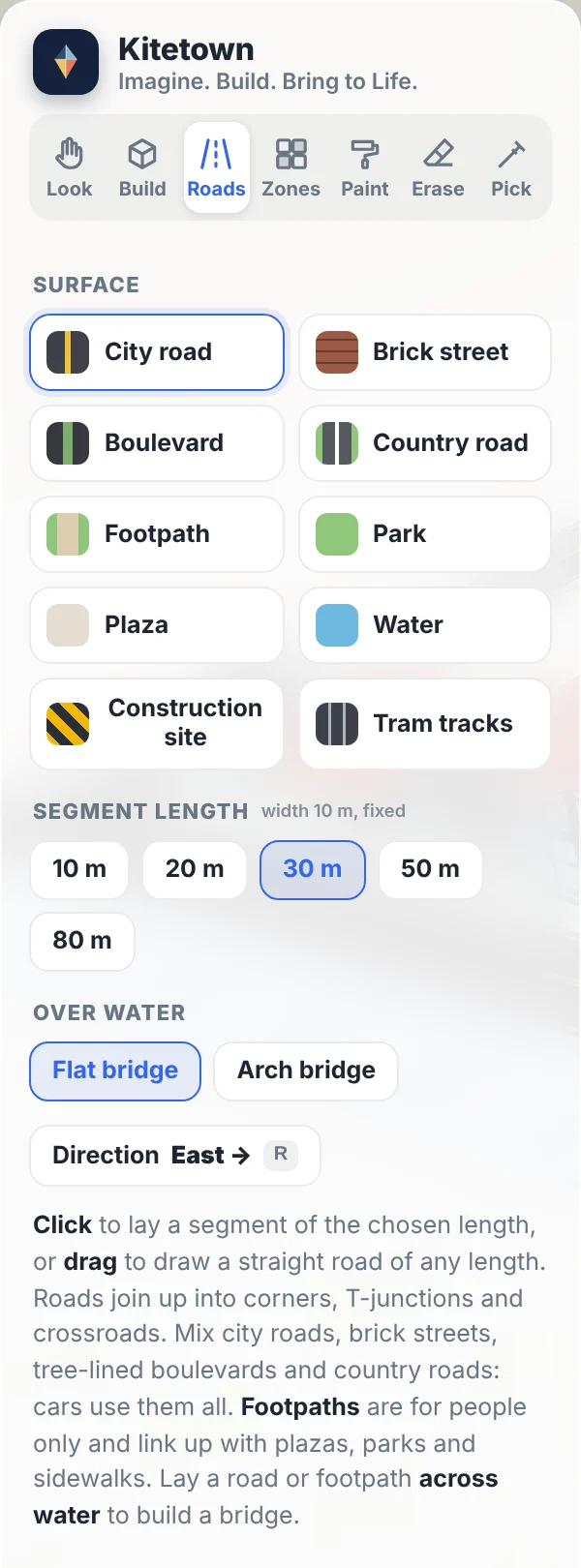
- The panel for the tool you picked: pieces, colours, road types, zone types and tips.
- The top bar: undo, season, photo, day and night, and more (see below).
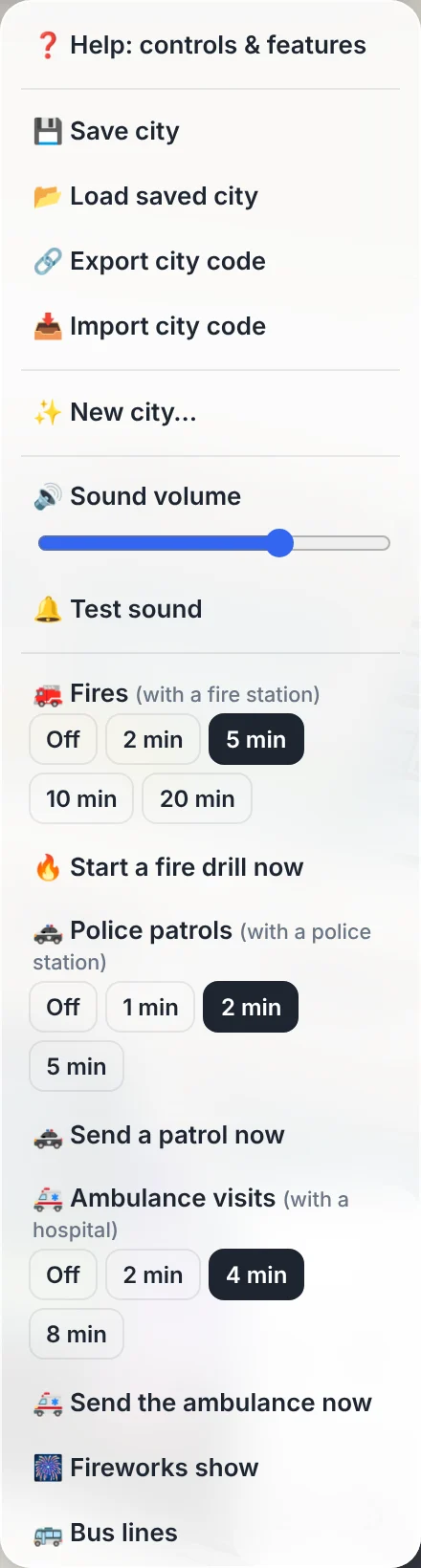
- The ☰ menu: help, saving, city codes, new city, sound, city services, bus lines, quality and backups.
- View controls: face north, turn, zoom, and switch between top-down and ¾ view.
- City facts: the date and time, blocks, road length, tallest building, population and cars.
The tools
- LookEmpty hands. Move around and tap things to learn about them. Nothing gets built by accident.0 / Esc
- BuildPlace pieces and ready-made buildings.1
- RoadsRoads, paths, parks, plazas, water, bridges and tram tracks.2
- ZonesPaint homes, shops or offices and buildings grow.3
- PaintRecolour pieces or give them brick, stone or wood.4
- EraseRemove pieces, roads and ground.5
- PickCopy the shape, turn and colour of anything you tap.6
The top bar
- Undo / RedoTake back your last changes, or bring them back.Ctrl Z / Ctrl Y
- SeasonFollow the calendar, or stay in spring, summer, autumn or winter.Y
- Photo & greeting cardFrame your city and save or share a picture.P
- Day and nightSwitch to night, follow the clock, and set how long a day lasts.N
- TrafficTurn cars on or off. Handy for quiet photos.
- Ride alongFollow a car through your streets.F
- Showcase orbitThe camera slowly circles your city. Tap again to stop.O
- WorkshopDesign your own buildings piece by piece.K
- Street namesShow or hide street names. Tap a name to get a new one.
- GridShow or hide the building grid.G
- SoundTurn sound on or off. Set the volume in the ☰ menu.M
- City menuHelp, saving, city codes, services, quality and more.
View controls
- Face northTurn the view back so north is up.
- Turn left / rightTurn the view 45° at a time.Q / E
- Zoom in / outGet closer or see more of the city.+ / −
- Top-down viewLook straight down, like a map. Great for planning roads.T
- ¾ viewThe classic angled view.V
✋Moving around
| To do this | Mac (mouse or trackpad) | iPhone and iPad |
|---|---|---|
| Move around the map | Drag in Look mode, or W A S D | Two fingers |
| Turn the view | Right-drag, or Q / E | One finger |
| Zoom | Scroll, pinch on a trackpad, or the + and − keys | Pinch with two fingers |
| Place or draw | Click | Tap |
| Put down what you hold | Esc | Tap the Look (hand) tool |
| See what something is | Click it with the Look tool | Tap it with the Look tool |
Lost? Tap the compass to face north, then use the top-down view (T) to see the whole map like a plan.
🛣️Roads, paths and bridges
Pick Roads, choose a surface, and lay it on the map. Corners, T-junctions and crossroads join up by themselves, and traffic lights appear at busy crossings.
Surfaces
- City road, brick street, boulevard, country road: cars use them all. Boulevards come with trees.
- Footpath: for people only. Links up with plazas, parks and sidewalks.
- Park and plaza: green space and open squares where people stroll.
- Water: ponds, canals and lakes.
- Construction site: fenced-off land for a building project.
- Tram tracks: lay them on roads and trams start running.
On a Mac
Click to lay one piece of the length you chose (10 to 80 m), or drag to draw a straight road of any length. Press R to change direction.
On iPhone and iPad
- 1Tap where the road starts
A marker shows the start.
- 2Tap where it ends, or tap ↻ Turn
Turn changes the direction of a fixed-length piece.
- 3Tap ✓ Lay it
The road is built. ✕ Cancel removes the plan.
Bridges
Lay a road or footpath across water and it becomes a bridge. Choose a flat bridge or an arch bridge in the panel.
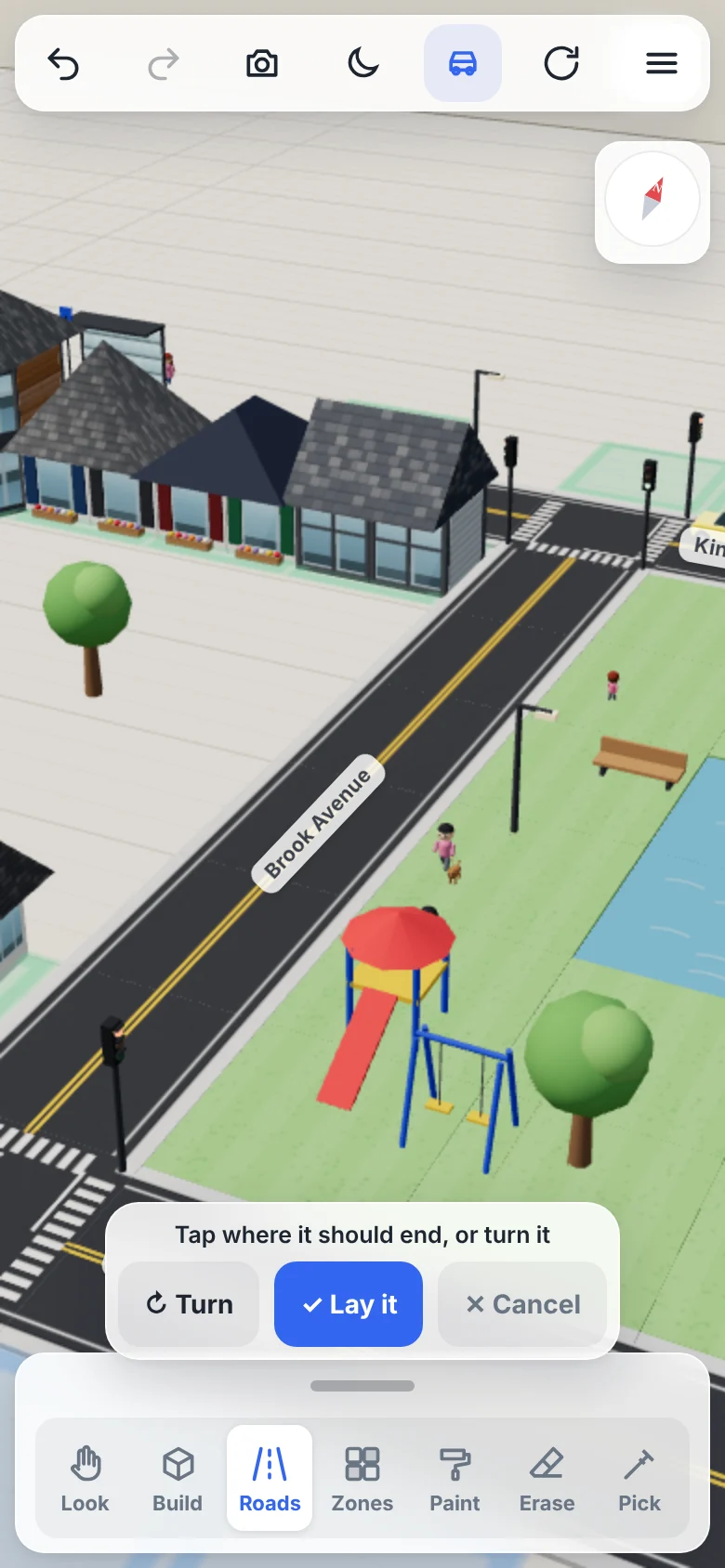
On iPad you can also drag a road with Apple Pencil or a trackpad, just like on a Mac.
🧱Building with pieces
Pick Build, choose a tab, pick a piece, and tap the map. Pieces stack like bricks: aim at the top of a piece to build up, or at its side to build next to it.
The tabs
- Blocks: cubes, walls, columns, slopes, arches and stairs.
- Windows: windows, glass walls, shopfronts and entrances.
- Roofs: gables, domes, spires, roof gardens and solar panels.
- Trim & doors: doors, awnings, cornices and flower boxes.
- Industrial and Rooftop & HVAC: pipes, tanks, cooling towers and vents.
- Street & park: trees, lamps, benches, fountains, bus stops, signs and city services.
- Celebrations: banners, lights, kites and fireworks.
- Templates: ready-made buildings (see the next section).
Handy controls
- Rotate: the ↻ Rotate button, or R.
- Height: ] and [ lift or lower the piece you are placing.
- Search: type "arch", "door" or a size like "1×2" to find a piece fast.
- Sizes: filter by small, medium or large.
- Colour: pick a colour or texture before you place.
- Erase removes a piece (anything on top drops down). Pick copies a piece so you can keep building with it.
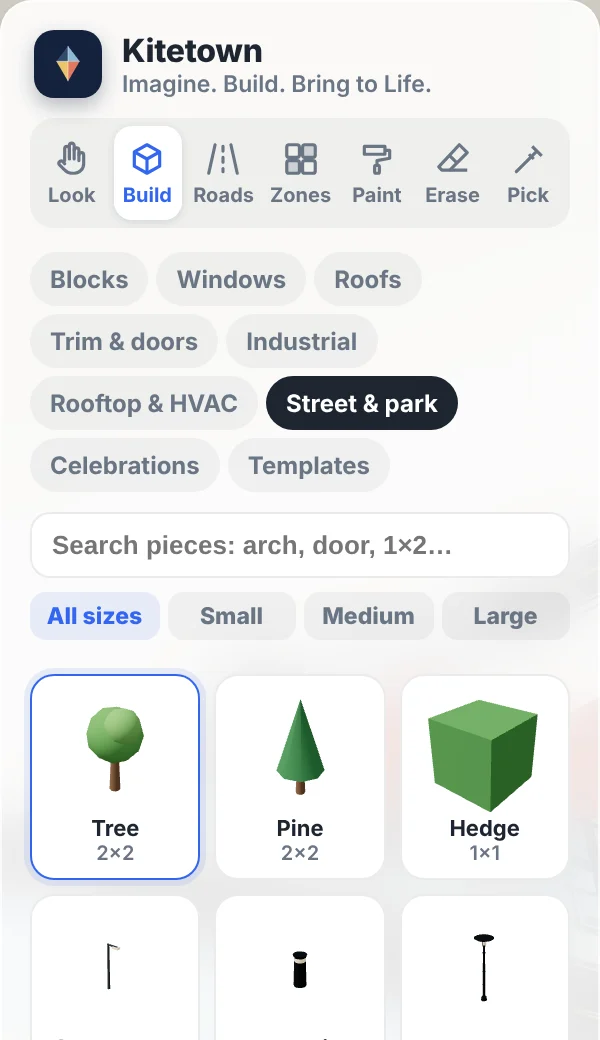
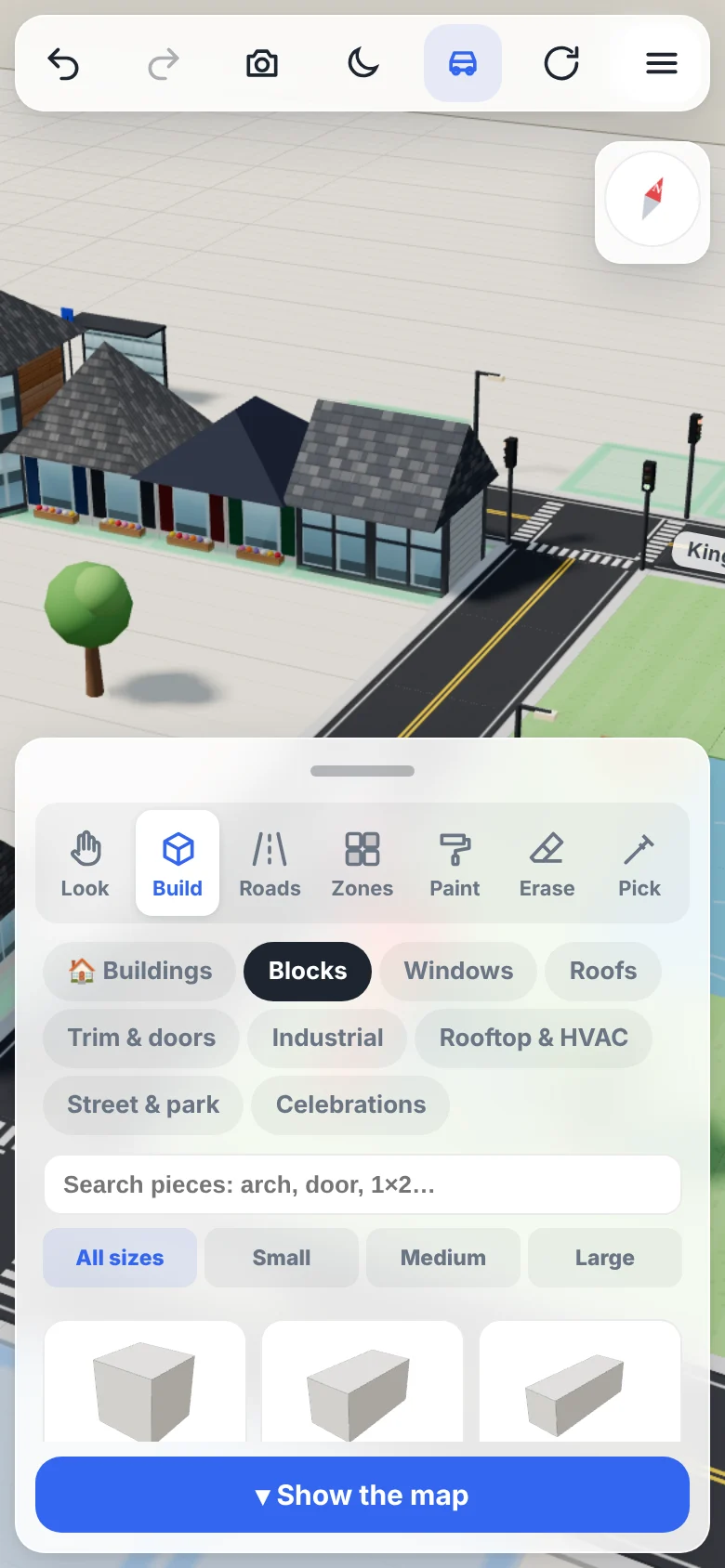
Placing pieces on iPhone and iPad
- 1Tap Build and pick a piece
The panel folds away by itself so the map is free. Tap Build again any time to choose another piece.
- 2Tap the map where it should go
A see-through preview appears. Green means it fits; red means it does not, and the bar says why.
- 3Turn it, then tap ✓ Place
The piece is built and the preview goes away, so nothing gets stacked by accident. ✕ Cancel removes the preview.
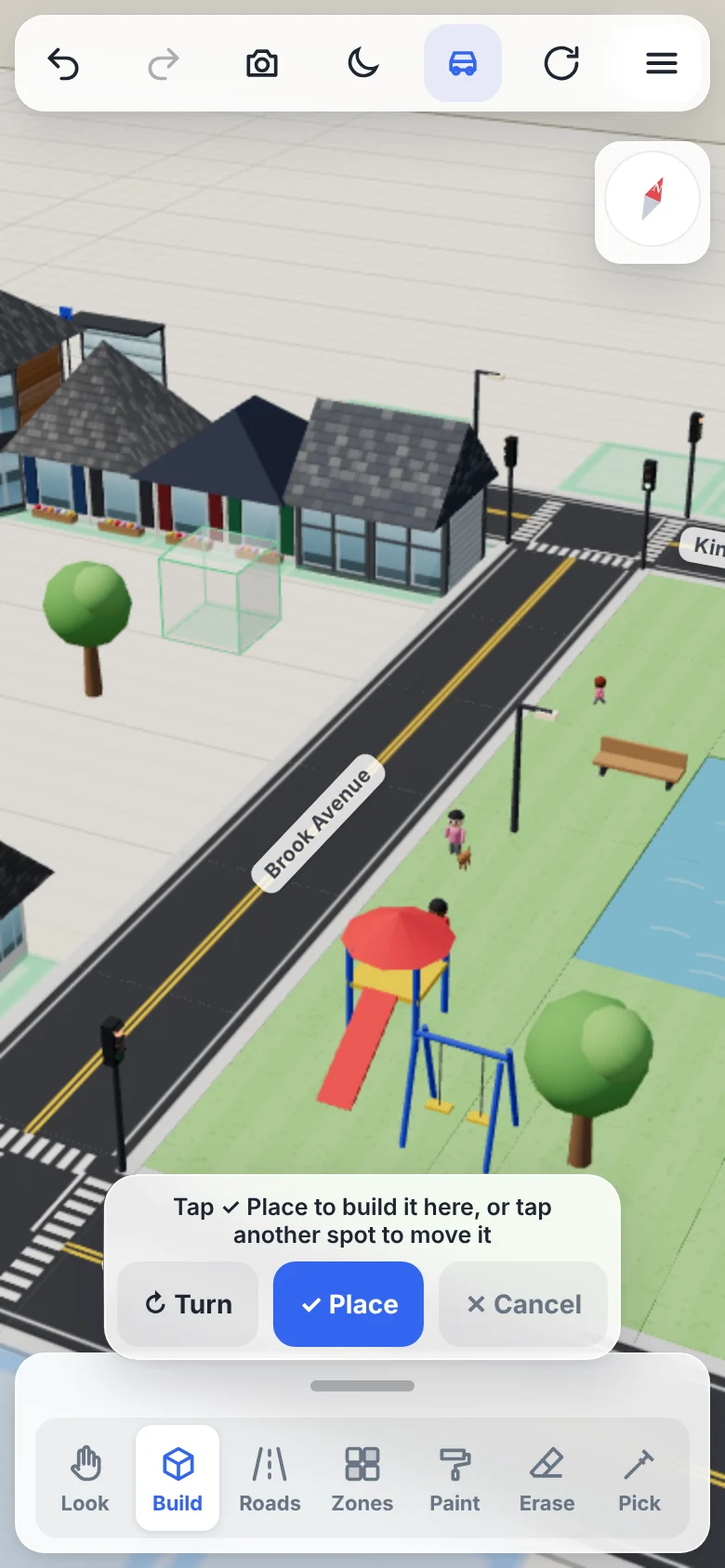
Street and park pieces have their own natural colours. Put them on parks, plazas or grass to bring a neighbourhood to life.
🏠Ready-made buildings
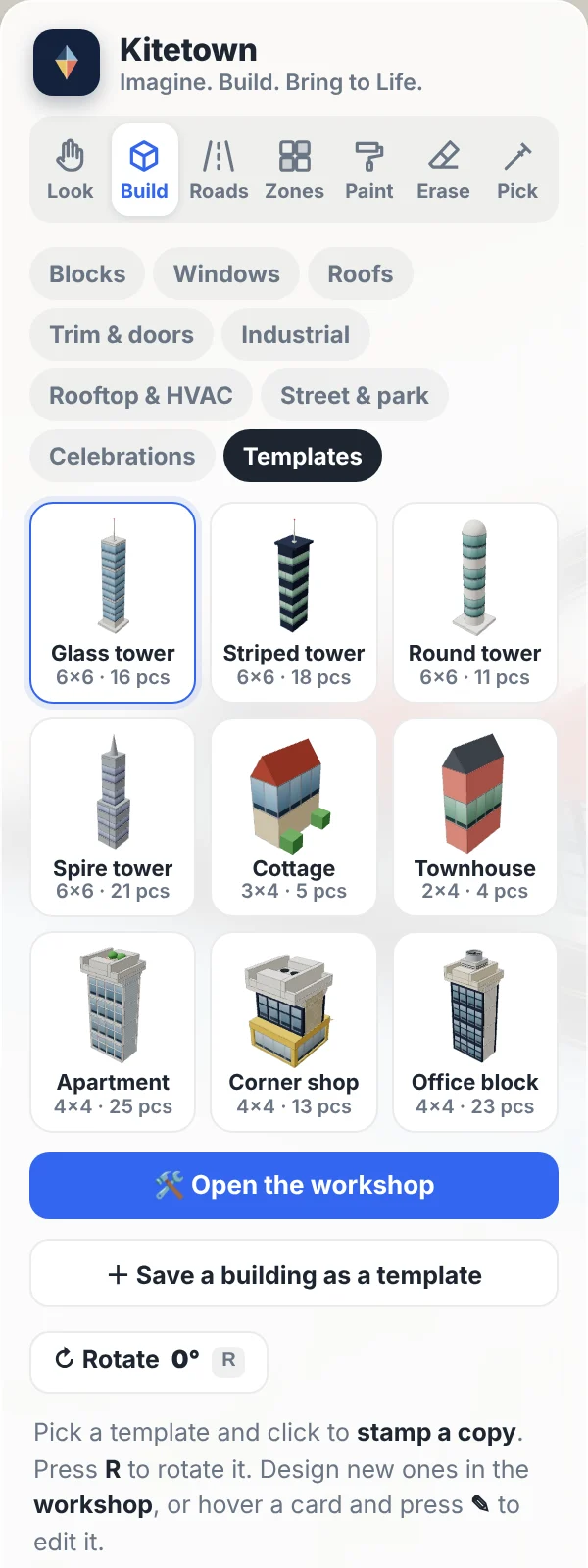
The Templates tab has whole buildings: cottages, townhouses, apartments, a corner shop, office blocks and towers. Pick one and tap the map to place a copy. R or ↻ Rotate turns it.
- Open the workshop to design your own buildings. They appear here too.
- + Save a building as a template turns a building in your city into a template you can copy. Full game
- On a Mac, hover over a building card and press the pencil to edit it in the workshop.
The free version includes the Cottage and the Townhouse. The other buildings come with the full game.
🏘️Zones: let neighbourhoods grow
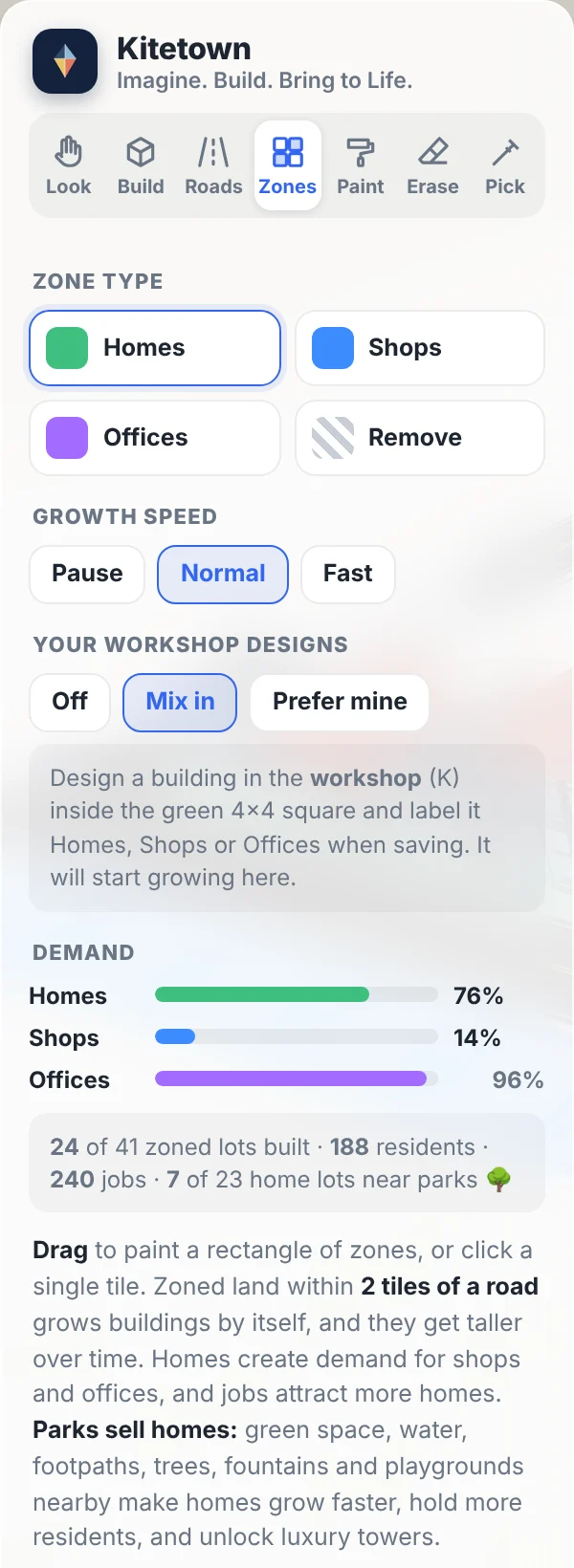
Instead of placing every building yourself, paint zones and let the city grow. Zoned land within 2 tiles of a road fills with buildings by itself, and they get taller over time.
Zone types
- Homes bring residents.
- Shops Full game bring cafés, bakeries and stores with their own opening hours.
- Offices Full game bring jobs.
- Remove clears zones.
How to paint
Drag to paint a rectangle, or tap a single tile.
Growth speed
Pause, Normal or Fast.
Demand
The bars show what your city wants next. Homes create demand for shops and offices, and jobs attract more homes.
Parks sell homes
Green space, water, footpaths, trees, fountains and playgrounds near homes make them grow faster, hold more residents and unlock luxury towers.
Your own designs
Choose Mix in or Prefer mine to let your workshop designs grow in zones (see The workshop).
🎨Paint and textures
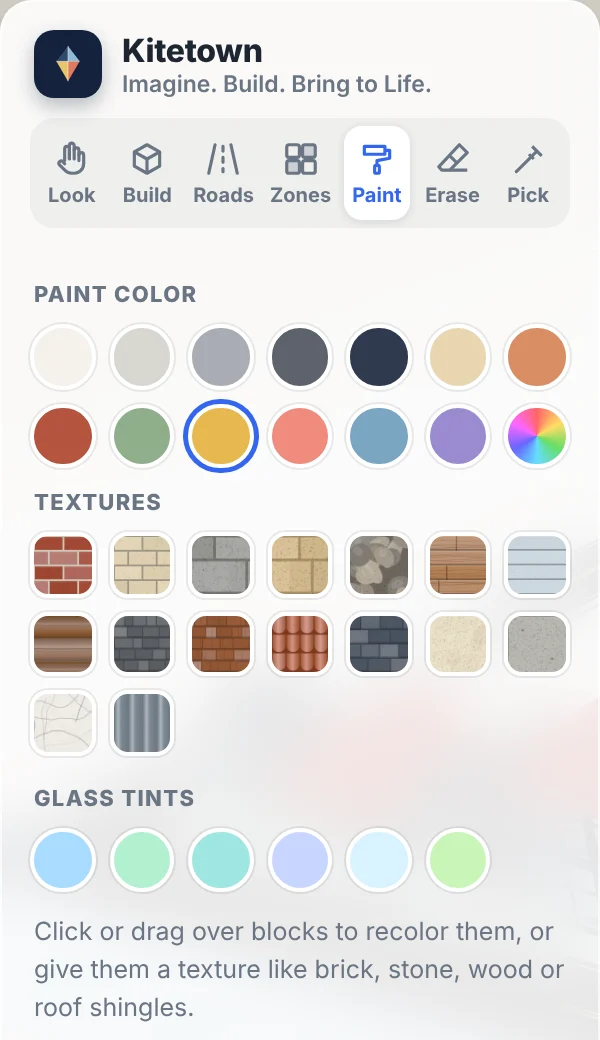
Pick Paint, choose a colour, a texture or a glass tint, then tap or drag over pieces to recolour them.
- Colours: soft city colours, from cream and grey to brick red and blue.
- Textures: brick, stone, wood, roof shingles and more.
- Glass tints: several tints for windows and glass walls.
Use the Pick tool on a piece you like to copy its colour, then keep painting with it.
The free version has five colours and textures. The full game has them all.
🚌Buses and trams
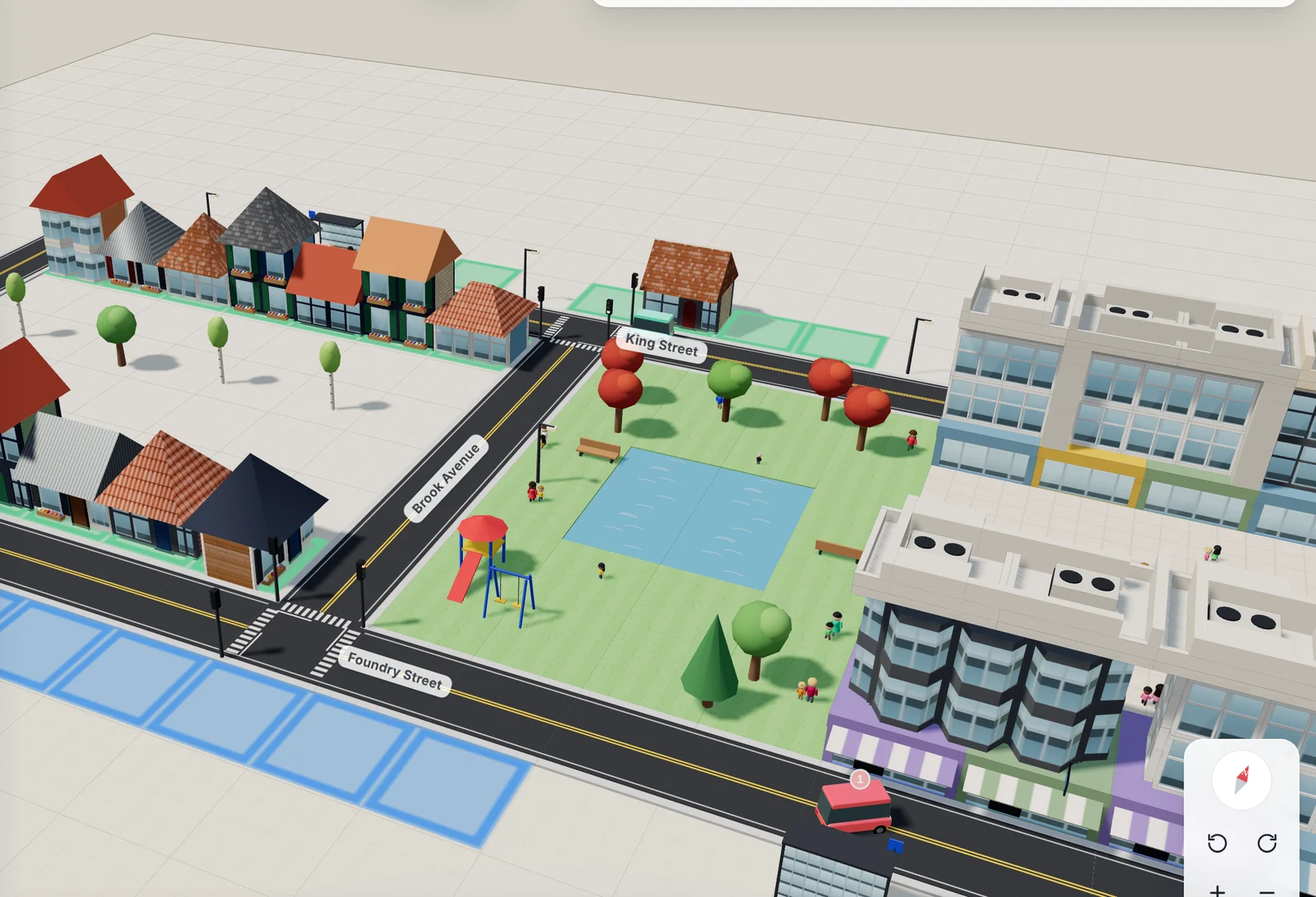
Put at least two bus stops beside roads (Build, Street & park tab) and a bus line starts by itself. Buses go round from stop to stop, and people wait at the stops.
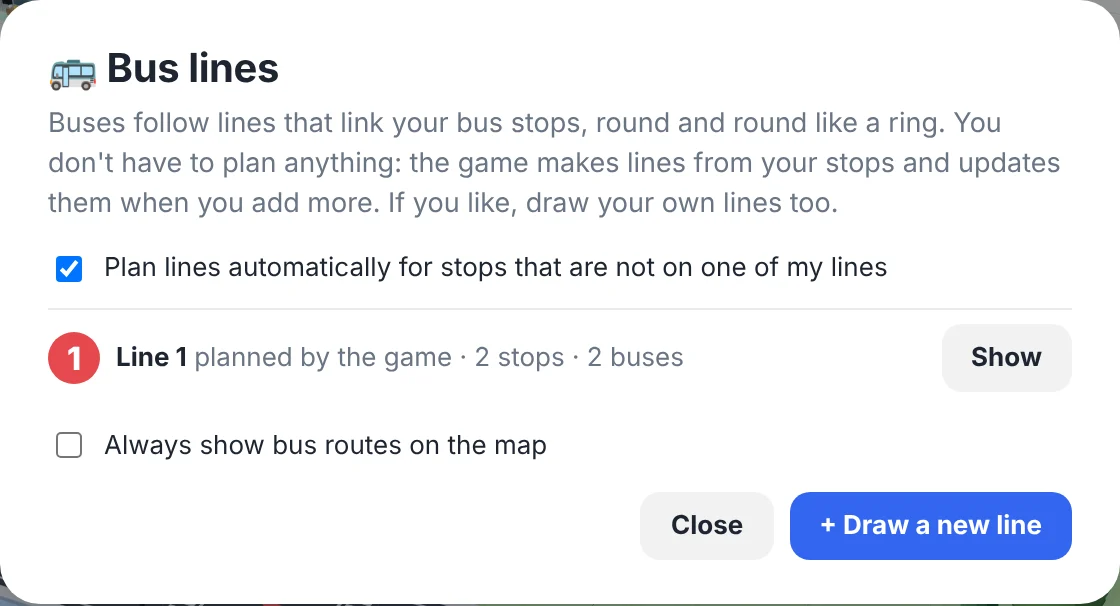
- Automatic lines: the game links your stops and updates the lines when you add more.
- Draw your own: in the ☰ menu, open Bus lines, choose + Draw a new line, and follow the steps on screen.
- Show: highlights one line's route on the map. "Always show bus routes" keeps them visible.
- Trams Full game: lay Tram tracks with the Roads tool and add a tram stop. Trams start running on their own.
Put stops at both ends of a long street, and near parks and shops, so the line serves more people.
☕Shops, services and city life
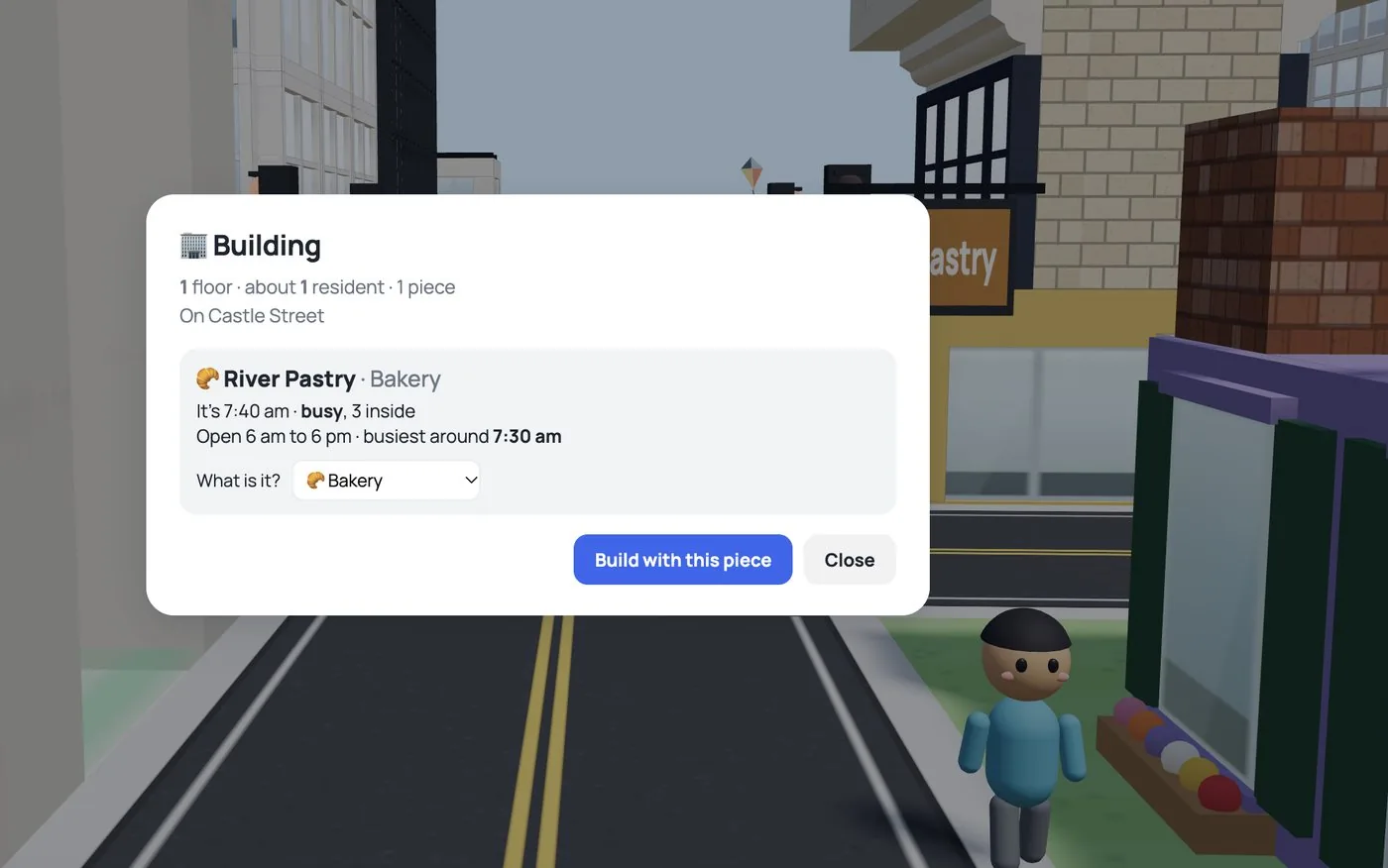
Pick the Look tool (the hand) and tap anything: a shop, a home, a street, a car, a parking garage, a fire station or a food truck.
Shops keep real hours
Every shop has a name, opening hours and a busiest time. A bakery is busy at breakfast, a restaurant at dinner. The card shows who is inside right now, and you can change what kind of business it is.
City services
- Fire station: fire drills happen now and then, and the fire truck comes. Set how often in the ☰ menu, or start one now.
- Police station: patrol cars drive through town.
- Hospital: an ambulance visits now and then.
Cars stop at lights and pull over for emergency vehicles.
Just watch
Ride along (F) follows a car through your streets. Showcase orbit (O) slowly circles your city. Both are lovely ways to enjoy what you built.
🌙Time, day and night, seasons
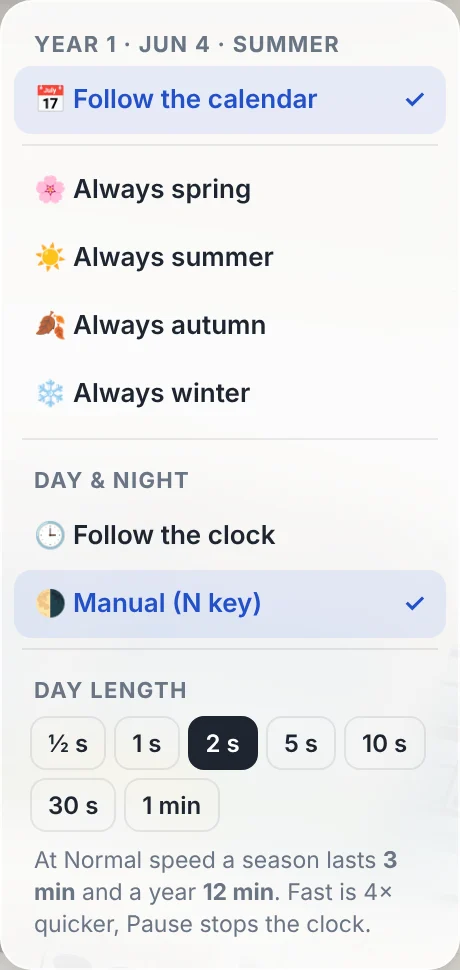
Kitetown has its own clock and calendar. The date and time show at the bottom left.
- Day and night: by default, you switch with the moon button (N). Choose Follow the clock and the sky follows the city's time instead: day from 7 am, night from 9 pm. Lamps and windows light up at night.
- Day length: choose how fast time passes in the city.
- Seasons: Follow the calendar moves through spring, summer, autumn and winter. Or pick one season to keep. Snow arrives in winter and leaves turn in autumn.
Shops keep their hours on the city clock, so a quiet street at 6 am is busy by lunchtime.
🎆Celebrations
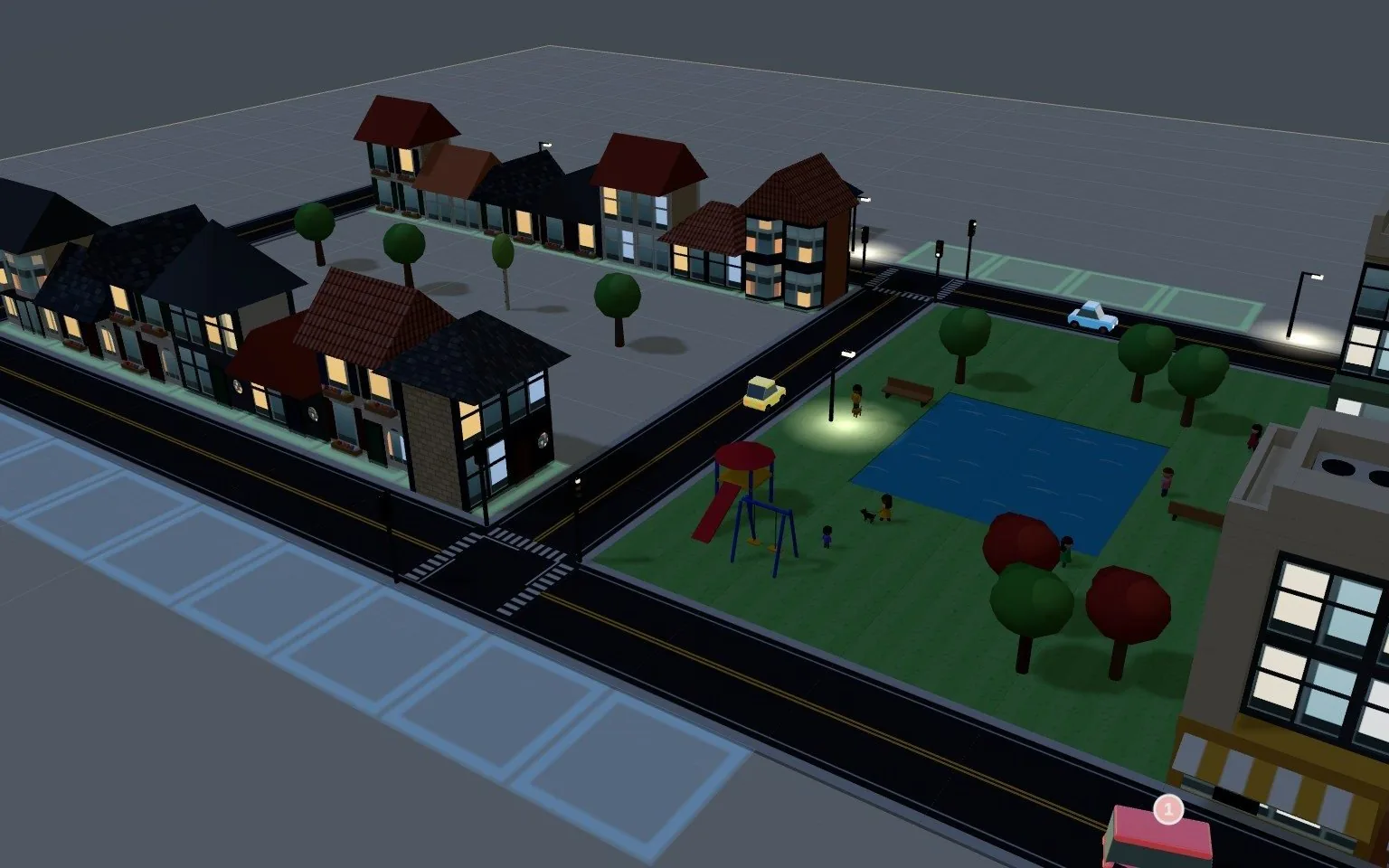
The Celebrations tab in Build has decorations for holidays and festivals from around the world: banners, string lights, lanterns, a holiday tree, a menorah, diyas and rangoli, jack-o'-lanterns, kites and a festival stage.
- Greeting banner: tap it with the Look tool to choose a holiday greeting from a ready-made list.
- Fireworks: put a fireworks launcher in a park, or start a full show from the ☰ menu with Fireworks show.
- Kites: people fly kites in your parks, and you can add kites of your own.
🛠️The workshop Full game
Design any building you can imagine, piece by piece, then use it in your city. Open it with the wrench button in the top bar (K), or from Build › Templates.
 1
Build
Stack pieces on the workshop plate. The green 4×4 square is the size a zone lot uses.
 2
Paint
Brush on colours, textures and glass tints.
 3
Save and use it
Give it a name and choose What is it? (Homes, Shops, Offices, or a fire, police or hospital station). Place it from Templates, or let it grow in zones.
 4
Share
Tap 🔗 Code, then Copy code and send it to a friend. They paste it and tap Open pasted design.
- You can save as many designs as you like.
- Make several looks for a fire, police or hospital station. In Look mode, tap a station to switch between them.
- To edit a saved design, open it again from the Templates tab.
The workshop is easiest on iPad or Mac, where you have more room. It works on iPhone too: turn the view with one finger and zoom with two.
The workshop is part of the full game.
📸Photos and greeting cards
Tap the camera button (P) to frame a picture of your city.
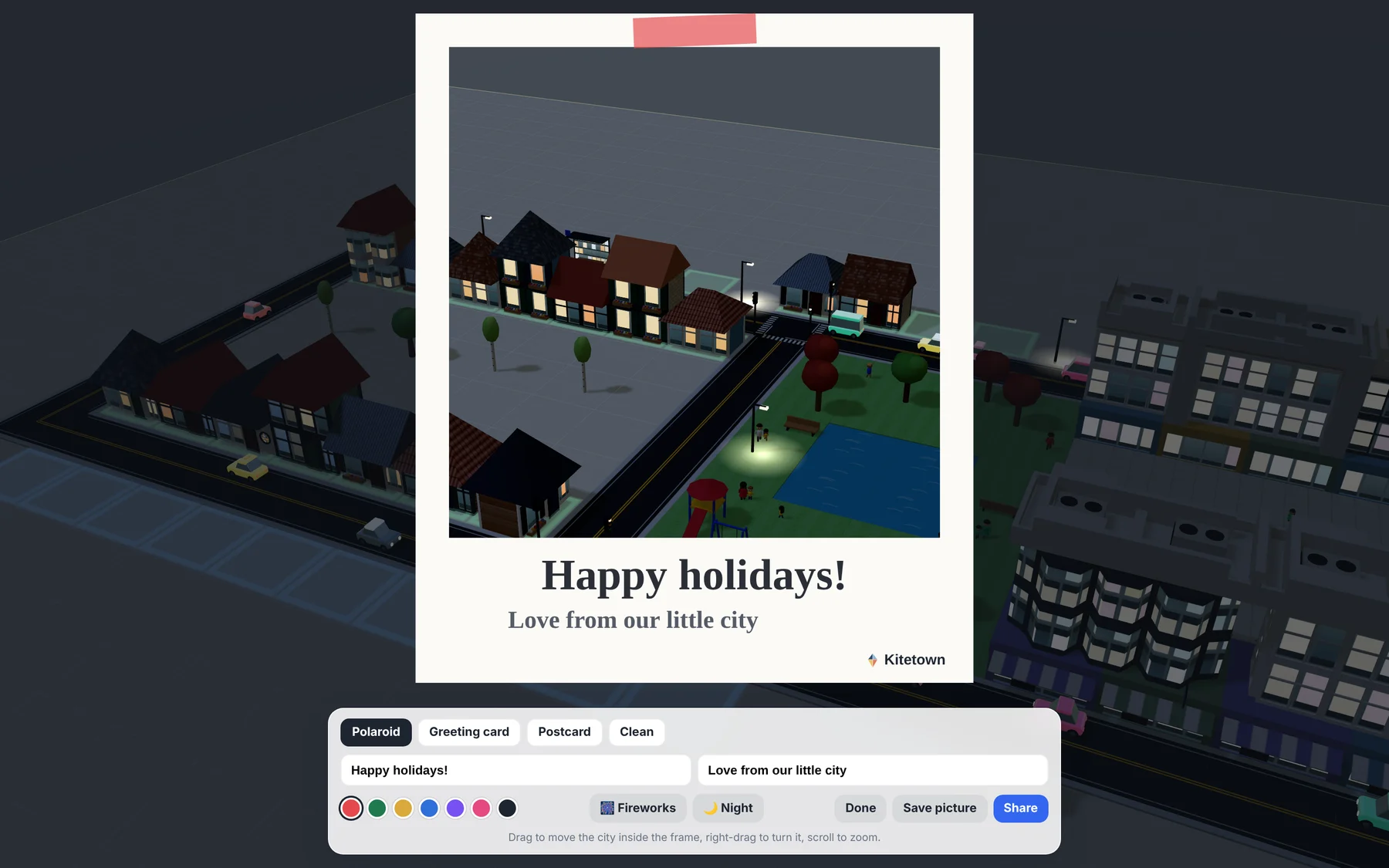
- Styles: Polaroid, Greeting card, Postcard or Clean (no frame).
- Your own words: type a title and a short message. Cards and workshop design names are the only places you can type, and a friendly word filter keeps them kind.
- Frame it: drag to move the city inside the frame, turn it, and zoom.
- Extras: choose a frame colour, add Fireworks, or switch to Night.
- Save picture saves the image. Share sends it with Messages, Mail or another app.
The free version has the Polaroid style. The other styles come with the full game.
💾Saving, backups and city codes
Your city saves itself all the time. Close the app whenever you like and it is there when you come back.
- Save city / Load saved city: keep one extra copy of your city, and go back to it later.
- Backups…: a copy is kept every few minutes and before big changes, like a new city or an import. Pick one to go back to it.
- Export city code Full game: turns your whole city into a code. Send it to yourself to move the city to another device, or to a friend to share it.
- Import city code Full game: paste a code to open that city. Your current one goes to Backups first.
- New city…: start again with Empty land, Small town or Busy city. Undo brings your old city back.
Cities are saved on your device only. Deleting the app deletes them, so export a city code first if you want to keep one.
📱Playing on iPhone and iPad
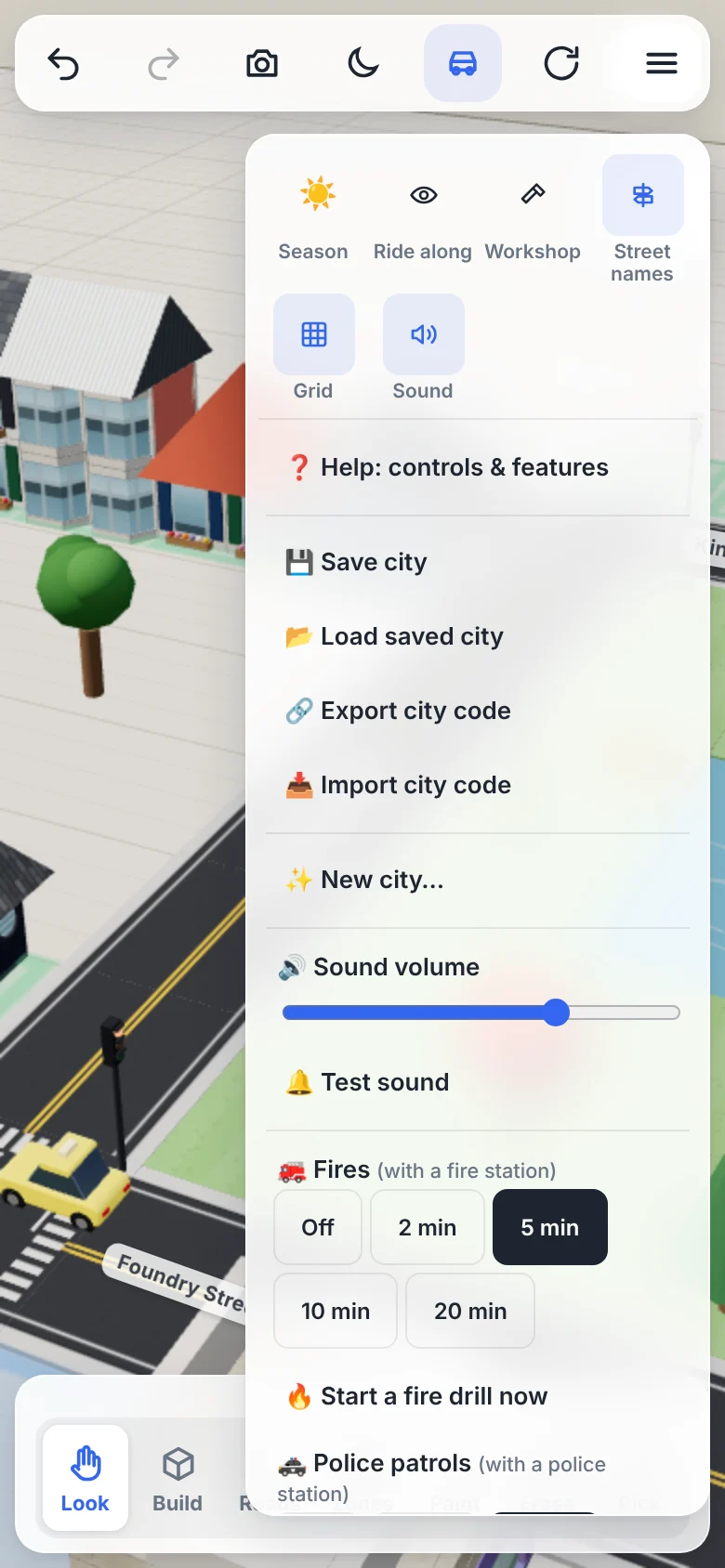
- Tools at the bottom: on iPhone the tools sit in a bar at the bottom. Tap a tool to open its panel, and tap it again to fold it. Picking a piece, a paint or a zone type folds it by itself, and ▾ Show the map folds it too.
- Quick buttons: on narrow screens, Season, Ride along, Workshop, Street names, Grid and Sound move to the top of the ☰ menu.
- Buildings first: on touch screens the Build panel opens on ready-made buildings, the quickest way to fill a street.
- Gestures: one finger turns the view, two fingers move and zoom.
- Roads: tap the start, then the end (or Turn), then ✓ Lay it.
- Gentle taps: on iPhone you feel a light tap when a piece is placed.
- iPad: drag roads with Apple Pencil or a trackpad, and enjoy the bigger workshop.
- Mac: every key shortcut on this page works. Open ❓ Help in the ☰ menu to see them in the game.
🔓Free and full game
| Free | Full game ($4.99 once) | |
|---|---|---|
| Starts | Empty land, Small town | + Busy city |
| Land | The centre of the map | The whole map |
| Pieces | The basics: blocks, windows, roofs, doors, trees, lamps, benches, bus stops | All pieces |
| Ready-made buildings | Cottage, Townhouse | All buildings |
| Colours and textures | Five | All |
| Zones | Homes | Homes, shops and offices |
| Workshop | No | Yes, unlimited designs |
| Photo styles | Polaroid | All styles |
| City codes and sharing designs | No | Yes |
| Traffic, buses, people, day and night | Yes | Yes |
| Future updates | Yes | Yes, always included |
Tap anything with a 🔒 to unlock the whole city. Already bought it on another device? Tap a lock and choose Restore purchase. See Support for Family Sharing and refunds.
🧰Tips and troubleshooting
The game feels slow or my device gets warm
Open the ☰ menu and lower Quality. Kitetown also lowers it by itself when needed. Turning traffic off for a while helps too, and very large cities need more power.
I built something by accident
Tap Undo in the top bar (Ctrl Z on a Mac). Use the Look tool when you only want to look around: it never builds.
My city is gone or I want an older version
Open the ☰ menu and choose Backups…, then pick a time to go back to.
Zones are not growing
Zoned land must be within 2 tiles of a road, and growth must not be on Pause. Check the Demand bars: if homes are low, add shops or offices (full game) or a park nearby.
No buses are running
You need at least two bus stops beside roads that connect. Open Bus lines in the ☰ menu to check.
No fires, patrols or ambulances
They need a fire station, police station or hospital in your city (Build › Street & park). Then set how often in the ☰ menu.
I can't type on signs or street names
That is on purpose, to keep the game friendly for everyone. Signs use ready-made words, and street names get a new name with the 🎲 button. You can type on photo cards and workshop design names.
Still stuck?
Write to us and tell us your device and what happened. A screenshot helps a lot.